Kubernetes training
Welcome to this github page built to document training examples for kubernetes.
frontend-backend-example-1
This is a very simple resource configuration that deploys a frontend and backend services running in the cluster. Frontend uses service type NodePort and ClusterIP for the backend. We are deploying into namespace app. You may choose another existing one or if you prefer, just remove namespace definition from metadata to deploy into default namespace.
Deploy backend
kubectl create -f backend.yaml
backend.yaml
apiVersion: apps/v1
kind: Deployment
metadata:
  namespace: apps
  name: backend
  labels:
    app: backend-app
spec:
  replicas: 4
  selector:
    matchLabels:
      app: backend-app
  template:
    metadata:
      labels:
        app: backend-app
    spec:
      containers:
      - name: nginx
        image: nginx:1.14.2
        ports:
        - containerPort: 80
---
apiVersion: v1
kind: Service
metadata:
  namespace: apps
  name: backend
spec:
  selector:
    app: backend-app
  ports:
    - protocol: TCP
      port: 80
      targetPort: 80
Deploy Frontend
kubectl create -f frontend.yaml
frontend.yaml
apiVersion: apps/v1
kind: Deployment
metadata:
  namespace: apps
  name: frontend
  labels:
    app: frontend-app
spec:
  replicas: 2
  selector:
    matchLabels:
      app: frontend-app
  template:
    metadata:
      labels:
        app: frontend-app
    spec:
      containers:
      - name: frontend
        image: nginx:1.14.2
        volumeMounts:
        - mountPath: /etc/nginx # mount nginx-conf volumn to /etc/nginx
          readOnly: true
          name: nginx-conf
      volumes:
      - name: nginx-conf
        configMap:
          name: frontend-nginx-conf # place ConfigMap `nginx-conf` on /etc/nginx
          items:
            - key: nginx.conf
              path: nginx.conf
            - key: virtualhost.conf
              path: conf.d/virtualhost.conf # dig directory
---
apiVersion: v1
kind: Service
metadata:
  namespace: apps
  name: frontend
spec:
  type: NodePort
  selector:
    app: frontend-app
  ports:
    - protocol: TCP
      port: 8080
      targetPort: 80
---
apiVersion: v1
kind: ConfigMap
metadata:
  namespace: apps
  name: frontend-nginx-conf
data:
  nginx.conf: |
    user  nginx;
    worker_processes  1;

    error_log  /var/log/nginx/error.log warn;
    pid        /var/run/nginx.pid;


    events {
        worker_connections  1024;
    }


    http {
        #include /etc/nginx/mime.types;
        default_type  application/octet-stream;

        log_format  main  '$remote_addr - $remote_user [$time_local] "$request" '
                          '$status $body_bytes_sent "$http_referer" '
                          '"$http_user_agent" "$http_x_forwarded_for"';

        access_log  /var/log/nginx/access.log  main;
        sendfile        on;
        keepalive_timeout  65;
        include /etc/nginx/conf.d/virtualhost.conf;
    }

  virtualhost.conf: |
    upstream app {
      server backend:80;
      keepalive 1024;
    }
    server {
      listen 80 default_server;
      root /usr/local/app;
      access_log /var/log/nginx/app.access_log main;
      error_log /var/log/nginx/app.error_log;
      location / {
        proxy_pass http://backend;
        proxy_http_version 1.1;
      }
    }
How this works
The frontend service by using NodePort is exposing a physical port in the kubernetes worker nodes. If not specified this will be a random port between 30000 and 32767.
Basically, we have nginx running on both deployments, but we are only exposing first service while the second one for backend is only accesible within the cluster. The configMap
injects the nginx configuration using volumes into the frontend, and this one is acting as proxy redirecting the traffic internally to the backend service.
frontend-backend-example-2
For this example more elavorated we are deploying for frontend a wordpress image from bitnami, and as a backend, the mariadb database. The database service is using a ClusterIP service type. This is because will be only serviced for wordpress, hence this eliminates a security breach exposing the database outside. On the other hand, wordpress service is using NodePort to publish outside the port listening to the application. We have chosen port 31080
Deploy backend (MariaDB)
---
apiVersion: apps/v1
kind: Deployment
metadata:
  generation: 1
  labels:
    run: mariadb
  name: mariadb
spec:
  replicas: 1
  selector:
    matchLabels:
      run: mariadb
  strategy:
    rollingUpdate:
      maxSurge: 1
      maxUnavailable: 1
    type: RollingUpdate
  template:
    metadata:
      labels:
        run: mariadb
    spec:
      containers:
      - image: bitnami/mariadb:latest
        imagePullPolicy: Always
        name: mariadb
        ports:
        - containerPort: 3306
          protocol: TCP
        env:
        - name: MARIADB_ROOT_PASSWORD
          value: bitnami123
        - name: MARIADB_DATABASE
          value: wordpress
        - name: MARIADB_USER
          value: bitnami
        - name: MARIADB_PASSWORD
          value: bitnami123
        volumeMounts:
        - name: mariadb-data
          mountPath: /bitnami/mariadb

      volumes:
      - name: mariadb-data
        emptyDir: {}
      dnsPolicy: ClusterFirst
      restartPolicy: Always
---
apiVersion: v1
kind: Service
metadata:
  name: mariadb
  labels:
    run: mariadb
spec:
  ports:
  - protocol: TCP
    port: 3306
    targetPort: 3306
  selector:
    run: mariadb
Deploy Frontend (Wordpress)
---
apiVersion: apps/v1
kind: Deployment
metadata:
  generation: 1
  labels:
    run: blog
  name: wordpress
spec:
  replicas: 1
  selector:
    matchLabels:
      run: blog
  strategy:
    rollingUpdate:
      maxSurge: 1
      maxUnavailable: 1
    type: RollingUpdate
  template:
    metadata:
      labels:
        run: blog
    spec:
      containers:
      - image: bitnami/wordpress:latest
        imagePullPolicy: Always
        name: wordpress
        ports:
        - containerPort: 80
          protocol: TCP
        - containerPort: 443
          protocol: TCP
        env:
        - name: MARIADB_HOST
          value: mariadb
        - name: MARIADB_PORT
          value: '3306'
        - name: WORDPRESS_DATABASE_NAME
          value: wordpress
        - name: WORDPRESS_DATABASE_USER
          value: bitnami
        - name: WORDPRESS_DATABASE_PASSWORD
          value: bitnami123
        - name: WORDPRESS_USERNAME
          value: admin
        - name: WORDPRESS_PASSWORD
          value: password
        volumeMounts:
        - name: wordpress-data
          mountPath: /bitnami/wordpress
        - name: apache-data
          mountPath: /bitnami/apache
        - name: php-data
          mountPath: /bitnami/php

      volumes:
      - name: wordpress-data
        emptyDir: {}
      - name: apache-data
        emptyDir: {}
      - name: php-data
        emptyDir: {}

      dnsPolicy: ClusterFirst
      restartPolicy: Always
---
apiVersion: v1
kind: Service
metadata:
  name: wordpress
  labels:
    run: blog
spec:
  ports:
  - protocol: TCP
    port: 80
    targetPort: 80
    nodePort: 31080
  selector:
    run: blog
  type: NodePort
How this works
The frontend service by using NodePort is exposing a physical port in the kubernetes worker nodes, same as example 1. If not specified this will be a random port between 30000 and 32767. We have manually chosen a fixed one. If we had a cloud-provider cluster with kubernetes service compatibility we would have gone for instance for the LoadBalancer service type, then cloud provider automatically provides a free IP resource for the service exposing outside of the cluster the service.
wordpress-complete-example
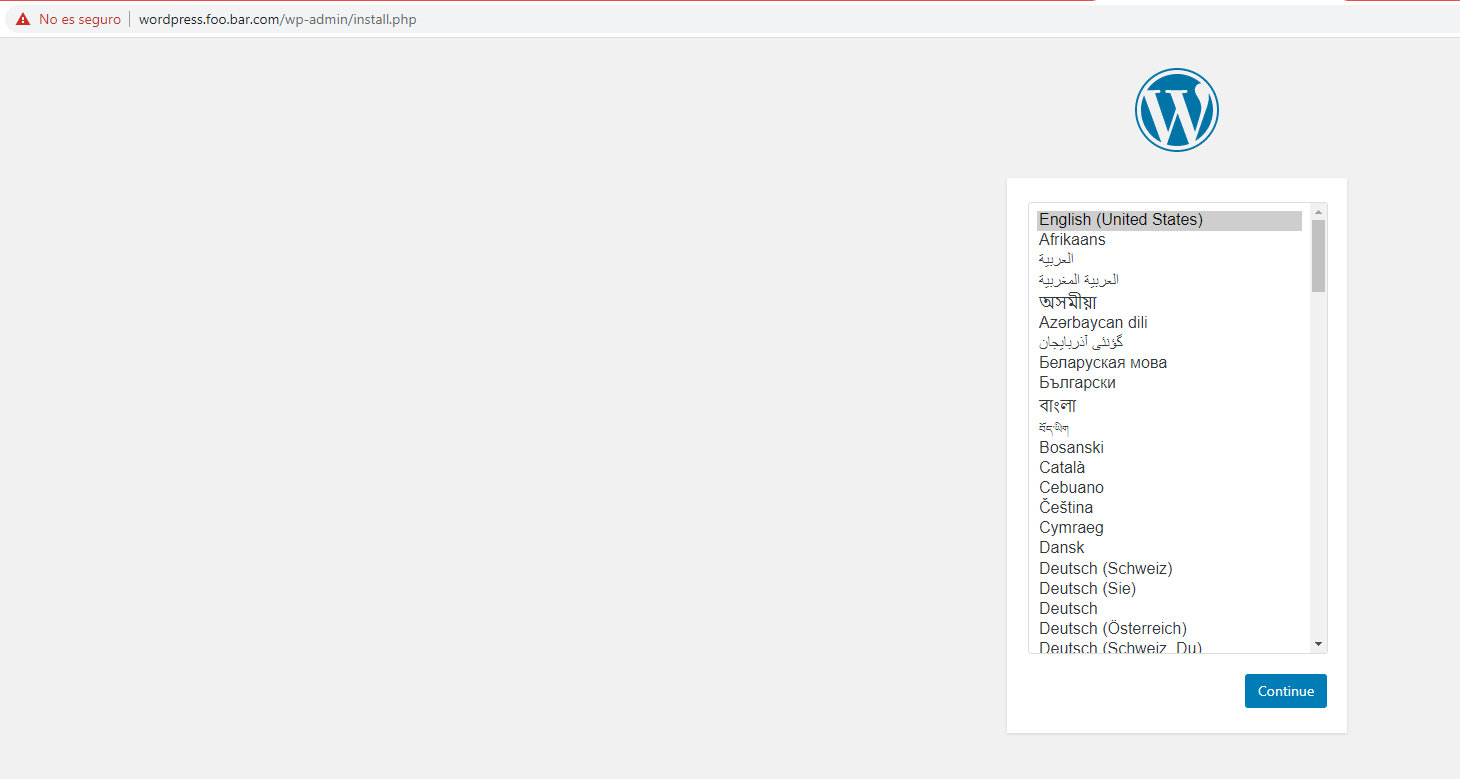
This may be considered an extension on the previous example ‘2’ . In here we are deploying the blog and database to be ready for a fresh configuration, but with the main concept of using and ingress controller. This way we are exposing the blog service outside of the cluster with an ingress resource.
For our example, we publish localhost and a dns wordpress.foo.bar.com with same result. Notice in here we are not using NodePort, but the nginx-controller is using 2 services, ClusterIP and LoadBalancer to handle the ingress requests. There are quite a few ingress controllers though you can find over internet, we will be using nginx-ingress.
Create a host record
For the example of the dns wordpress.foo.bar.com, we will be required to create a host entry locally to point to the IP address of the machine:
- Linux:
/etc/hosts - Windows:
C:/System32/drivers/etc/hosts - Mac:
/private/etc/hosts
# DNS record to point to our cluster
{local_ip_address} wordpress.foo.bar.com
Create our custom Namespace
kubectl apply -f wordpress-complete-example/namespace.yaml
Deploy the nginx-ingress controller
We are using the default resources for the application which are deployed in an isolated namespace
kubectl apply -f https://raw.githubusercontent.com/kubernetes/ingress-nginx/controller-v0.43.0/deploy/static/provider/cloud/deploy.yaml
Deploy the backend database
kubectl apply -f wordpress-complete-example/app/backend-mariadb-deploy.yaml
Deploy the frontend blog
kubectl apply -f wordpress-complete-example/app/frontend-wordpress-deploy.yaml
Access to the blog
Now you can access to the blog by using one of the ingress hosts examples and set the blog up:
- example 1: http://localhost
- example 2: http://wordpress.foo.far.com